How to Sign a Scanned Document (Even a Phone Photo)
Learn how to sign a scanned document or phone photo: get a clean scan, sign it yourself for free or send it to others to sign, with no PDF conversion.

Quick answer
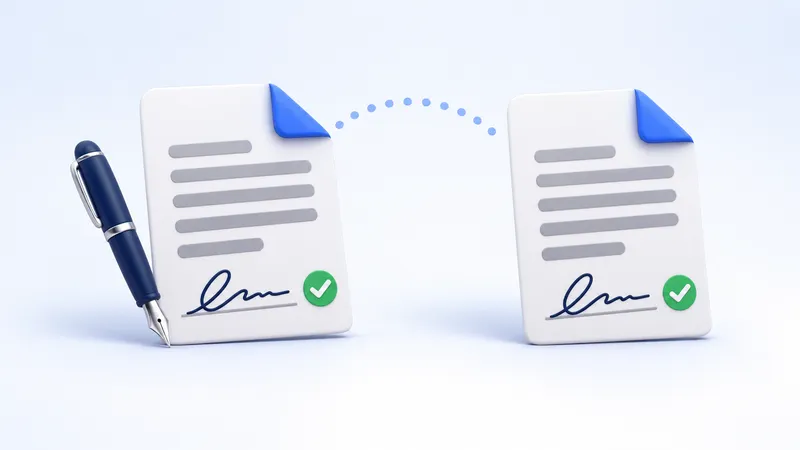
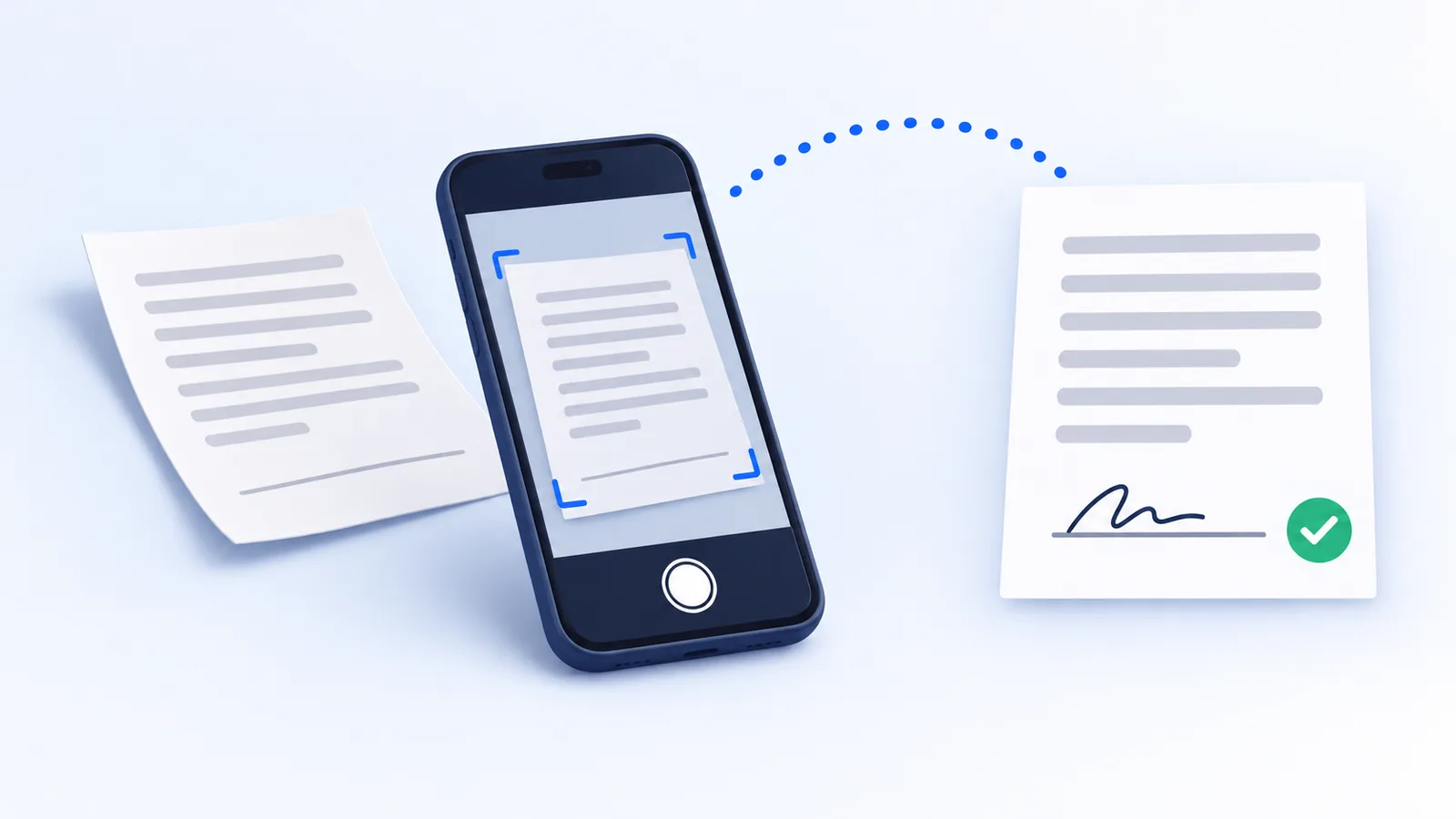
To sign a scanned document, add the scanned PDF or phone photo to an e-signature tool, place a signature field on the page and type or draw your signature. ReadyInk accepts PDF, JPG and PNG scans directly, places the fields with AI, and lets you sign yourself for free or send the page to others to sign.
Key takeaways
- A scan is a flat image, so you sign it by placing fields on top of the page.
- Use a scanning app like Notes or Google Drive for a straight, cropped page.
- ReadyInk accepts JPG and PNG photos directly; HEIC isn't accepted yet.
- Signing your own scan is free; each other signer uses 1 token.
Someone hands you a paper form, or emails you a scan of one, and you need to sign it today without a printer. Knowing how to sign a scanned document saves the print-sign-rescan loop. A scan or phone photo is just a flat image, so you can't type into it, but you can place a signature on top of it. This guide covers how to capture a clean scan, how to sign it yourself and how to send it to other people to sign.
What makes a scanned document different?
A scanned document is a picture of paper. Unlike a Word file or a fillable PDF, it has no text boxes or signature fields built in. To sign it electronically, you need a tool that lets you add fields on top of the image, then saves the result as a new file.
Scans usually arrive in one of three forms:
- A PDF from a scanner or scanning app. The most common kind. Each page is an image inside the PDF.
- A JPG or PNG photo. What you get when you snap the page with your phone's camera.
- An HEIC photo. iPhones save photos in this format by default, and many signing tools, including ReadyInk for now, don't accept it.
Many guides tell you to convert a photo to PDF before you sign. With ReadyInk you don't need to: JPG and PNG images work as they are.
How do you get a clean scan of a paper document?
A clean scan makes the signed copy easier to read and harder to dispute. Your phone does a good job if you use its scanning tool rather than the plain camera, because the scanner straightens the page and crops the background.
On an iPhone
Apple's guide to scanning documents on iPhone shows the steps: open Notes, tap the Attachment button, then Scan Documents. Hold the page in view, adjust the corners and tap Keep Scan, then Done.
If you'd rather use the Camera app, switch it to JPEG first. Apple's page on HEIF and HEVC media explains how: open Settings › Camera › Formats and choose Most Compatible. New photos then save as JPEG instead of HEIC.
On an Android phone
Use the Google Drive app. Google's guide to scanning documents with Google Drive walks through it: tap Camera, photograph the page, crop or clean it, tap Done, then choose .pdf or .jpg and tap Save.
Tips for any scan
- Lay the page flat on a dark, plain surface in even light, with no shadow from your phone.
- Capture every page, including pages that only have a signature line.
- Check that small print and existing signatures are readable before you move on.
How to sign a scanned document yourself
If you're the only person signing, you can do it free with ReadyInk's Sign it yourself. Signing your own document costs nothing.
- Add the scan. On New document, add the PDF, JPG or PNG. ReadyInk makes a fixed-layout copy, so the page doesn't shift.
- Let AI place the fields. ReadyInk's AI reads the page and places the signature, date and other fields where they belong. You review them and move anything that's off.
- Sign. Type or draw your signature with a mouse, trackpad or finger.
- Download the signed PDF. Email it back or file it with your records.
Prefer a desktop app? Adobe's guide to signing PDFs in Acrobat Reader covers its Fill & Sign tool, which lets you type, draw or add an image of your signature on a scanned PDF. Our guides to signing a PDF on iPhone and signing a PDF on Android cover the phone apps.
How do you send a scanned document for someone else to sign?
When a client, tenant or customer needs to sign, send the scan through an e-signature tool instead of emailing the image. They get a link, sign in their browser and you can see where it stands.
- Add the scan in ReadyInk the same way: a PDF, JPG or PNG straight from your phone or computer.
- Review the fields. AI places each signer's fields. Check them, since handwriting and stamps on old forms can sit close to the lines.
- Add signers. Enter each person's name and email. Set reminders every 3 or 7 days and, if you like, when the request expires.
- Send and track. Signers don't need an account. Each document shows as Out for signature until it's Completed, or Declined if someone refuses.
Each signer uses 1 token, and packs start at $10 for 20 tokens that never expire. Copies to extra recipients and reminders are free. For more ways to start a request, see how to send documents for signature or sign documents online.
Common problems when signing a scan
| Problem | Fix |
|---|---|
| The file won't upload | It may be HEIC. Switch the iPhone camera to Most Compatible, or rescan with Notes or Google Drive. |
| The page is crooked or has a dark border | Rescan with a scanning app, which straightens and crops the page. |
| Text is blurry | Rescan in better light and hold the phone parallel to the page. |
| A page is missing | Rescan all pages into one file before you send it. |
If you started with a Word file rather than paper, skip the scan entirely. Our guide on how to sign a Word document shows how to send it as it is.
Frequently asked questions
Can you electronically sign a scanned document?
Yes. Add the scanned PDF or image to an e-signature tool, place a signature field on top of the page and type or draw your signature. The tool saves the result as a new signed file.
Do I need to convert a photo to PDF before signing it?
Not with ReadyInk, which accepts JPG and PNG images directly. HEIC photos aren't accepted yet, so switch your iPhone camera to Most Compatible or use a scanning app first.
Can I fill in text on a scanned form?
Yes. A scan has no built-in text boxes, but an e-signature tool can add text fields on top of the page. ReadyInk's AI places text fields along with signature and date fields, and you review them before signing or sending.
How much does it cost to send a scanned document with ReadyInk?
Signing it yourself is free. Sending it to others uses 1 token per signer, and token packs start at $10 for 20.
Have a paper form you need signed today? Create your ReadyInk account, add the scan or phone photo as it is, let AI place the fields and sign it yourself or send it in a few minutes.
Sources and further reading
- Scanning documents on iPhone (support.apple.com)
- HEIF and HEVC media (support.apple.com)
- Scanning documents with Google Drive (support.google.com)
- Signing PDFs in Acrobat Reader (helpx.adobe.com)