How to Send a PDF From Dropbox for Signature
Learn how to send a PDF from Dropbox for signature without downloading it, and get every signed copy saved back to a Dropbox folder automatically.

Quick answer
To send a PDF from Dropbox for signature, connect Dropbox in ReadyInk, choose Choose a PDF on the New document screen and pick the file in Dropbox's own picker. ReadyInk places the fields, you review and send, and the signed copy is saved to Apps › readyink.ai in your Dropbox.
Key takeaways
- Each person connects their own Dropbox once, on any plan.
- Pick one PDF in Dropbox's own picker; no downloading or re-uploading.
- Signed copies save to Apps › readyink.ai automatically.
- ReadyInk only sees the file you pick and its own folder.
If your contracts, quotes and forms already live in Dropbox, getting one signed usually means a round trip: download the PDF, upload it to an e-signature tool, wait, then download the signed copy and drag it back into the right folder. You can send a PDF from Dropbox for signature without any of that. With the ReadyInk Dropbox integration, you pick the file straight from Dropbox, and the signed copy is saved back to your Dropbox when everyone has signed. This guide covers how it works, how to set it up and a few habits that keep your files tidy.
Why send a PDF from Dropbox for signature?
Sending straight from Dropbox removes the two most error-prone steps in signing: picking the right file to upload and filing the signed copy afterwards. When those steps are manual, it's easy to send last week's version or forget to save the final copy.
- No downloading or re-uploading. You choose the PDF in Dropbox's own file picker, so the file you send is the file in your folder.
- The signed copy files itself. When the last person signs, the signed PDF goes back to your Dropbox automatically.
- One place to look later. Signed agreements collect in one Dropbox folder that you can search, share or back up like any other.
The people signing don't need Dropbox. They get a secure link by email and sign in their browser on a phone, tablet or computer, with no account to create.
What you need before you start
- A readyink.ai account. The Dropbox integration works on every plan, including Individual accounts that use token packs. Sign up if you don't have one.
- A Dropbox account. Each person connects their own Dropbox. If your company uses a Dropbox team account, an admin may control which apps members can connect; Dropbox's guide to managing apps for team accounts shows where that setting lives.
- A final PDF. The Dropbox picker in ReadyInk shows PDFs only. If your document is a Word file, you can add it from your computer on New document instead, with no conversion needed. Save Dropbox Paper docs as a PDF first.
How to send a PDF from Dropbox for signature, step by step
1. Connect Dropbox
In readyink.ai, open Integrations, choose Dropbox and then Connect Dropbox. You can also connect from the Dropbox tile on the New document screen. Dropbox shows what ReadyInk is asking for. Approve it, and you come back to ReadyInk with Dropbox marked as connected. You only do this once.
2. Pick the PDF on New document
Start a new document. Under the upload area, the Dropbox tile now reads Choose a PDF. Choose it, and Dropbox's own picker opens. Search or browse your folders as usual, then pick one PDF. ReadyInk fetches that file and uses its name as the document name, which you can change.
3. Let ReadyInk prepare it
Choose Ready it! and ReadyInk's AI reads the document, works out who signs and places every signature, initial, date and text field for each signer. If you'd rather place the fields yourself, choose Prepare it myself. Either way, nothing is sent yet.
4. Review and send
Check each field, the signers' names and email addresses, and whether they sign all at once or one after another. Set reminders every 3 or 7 days if you like, and an expiration date. Before you send, ReadyInk shows how many tokens the send uses. One token covers one signer on one document, and copies to other people are free.
5. Find the signed copy in Dropbox
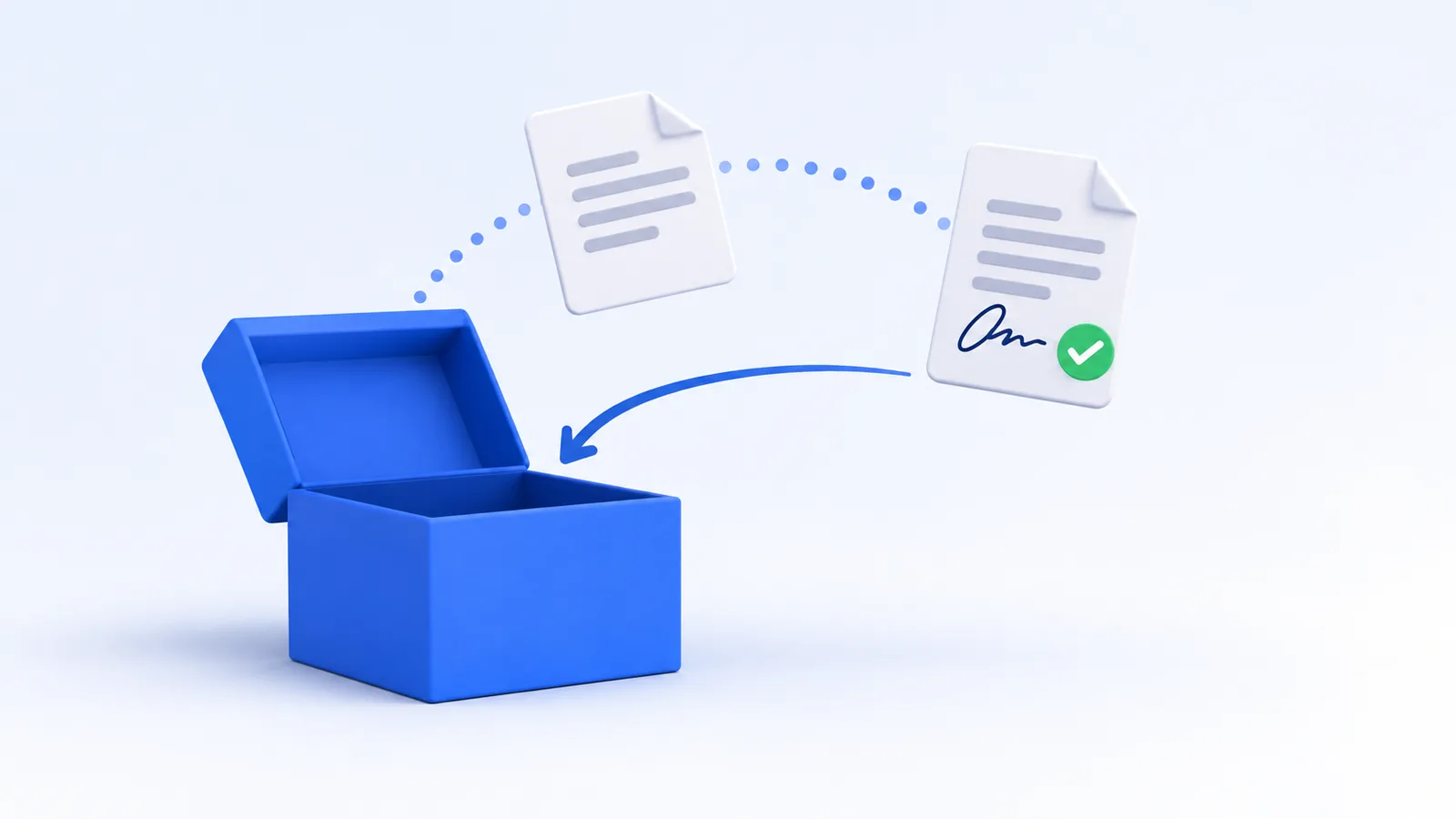
When everyone has signed, ReadyInk seals the document and saves it to your Dropbox, in the readyink.ai folder under Apps. The file is named after the document, like "Catering Contract (signed).pdf", and its completion certificate is included as the last pages. Each signer also gets their own copy by email.
Where do signed copies go in Dropbox?
Signed copies go to a folder Dropbox creates for ReadyInk: Apps › readyink.ai. Dropbox gives each connected app its own folder like this, named after the app. A few details are worth knowing:
- It's on by default. You can turn off Save signed copies to Dropbox on the Dropbox panel in Integrations.
- It follows the sender. The copy goes to the Dropbox of the person who sent the document.
- Only new documents. Documents completed after you connect are saved. Connecting doesn't copy older documents.
- No overwriting. If a file with the same name is already there, Dropbox adds a number instead of replacing it.
- Google Drive too. If you also connected Google Docs, you get a copy in each place.
To share a signed agreement with a teammate or client, share the file from Dropbox like any other.
Can ReadyInk see all my Dropbox files?
No. ReadyInk asks for Dropbox's narrowest kind of access, called an App folder. Dropbox's guide to managing third-party apps explains it: an app with App folder access can only work in its own folder, while Full Dropbox access covers every file.
| What ReadyInk uses | What it does |
|---|---|
| Dropbox's file picker | Opens only the one PDF you pick, through a short-lived link from Dropbox |
| Its App folder | Saves signed copies to Apps › readyink.ai, and nothing else |
| Your account info | Shows which Dropbox is connected, on the Integrations page only |
The picker is the Dropbox Chooser, a component Dropbox provides so apps can receive a file you select without building their own file browser. ReadyInk never lists, reads or changes anything else in your Dropbox. For the full picture, see the Dropbox e-signature page.
Tips for a tidy Dropbox signing workflow
- Keep one "To sign" folder. Save final PDFs there, so you always pick the right version.
- Name files clearly. The file name becomes the document name and the signed file's name, so "Smith Catering Contract" beats "contract-final-v3".
- Save repeat agreements as templates. On the Team plan, save a Dropbox PDF as a template with its fields and signer roles. Read how to turn a PDF into an e-signature template.
- Tell signers it's coming. A quick heads-up helps people trust the email. Our guide to sending a PDF for signature by email has more on writing a clear request.
If your team talks about documents in Slack, you can also send documents for signature in Slack. Every option is on the integrations page.
What does it cost?
The Dropbox integration is free. Documents you send from Dropbox use tokens the same way as any other send: 1 token per signer, however many fields they sign. Reminders and copy recipients don't use tokens. Token packs start at $10 for 20 tokens, and purchased tokens never expire. Signing your own document is free with Sign it yourself. See ways to send documents for signature for the other places you can start.
Frequently asked questions
Can I send a Word document from Dropbox for signature?
Not through the Dropbox picker, which shows PDFs only. You can add the Word file from your computer on New document instead, and ReadyInk handles the conversion.
Is ReadyInk the same as Dropbox Sign?
No. Dropbox Sign is Dropbox's own e-signature product. ReadyInk is a separate e-signature service that connects to your Dropbox to pick PDFs and save signed copies; it isn't affiliated with Dropbox.
How do I disconnect Dropbox from ReadyInk?
Open Integrations in readyink.ai, choose Dropbox, then Disconnect. You can also remove it from the Apps tab in your Dropbox settings. Signed copies already saved stay in your Dropbox.
How much does it cost to send a PDF from Dropbox with ReadyInk?
The integration is free. Each send uses 1 token per signer, and token packs start at $10 for 20 tokens.
Ready to stop downloading and re-uploading? Create your ReadyInk account, connect Dropbox from Integrations and send your next PDF straight from your folder.
Sources and further reading
- Managing apps for team accounts (help.dropbox.com)
- Managing third-party apps (help.dropbox.com)
- Dropbox Chooser (docs.dropboxapi.com)